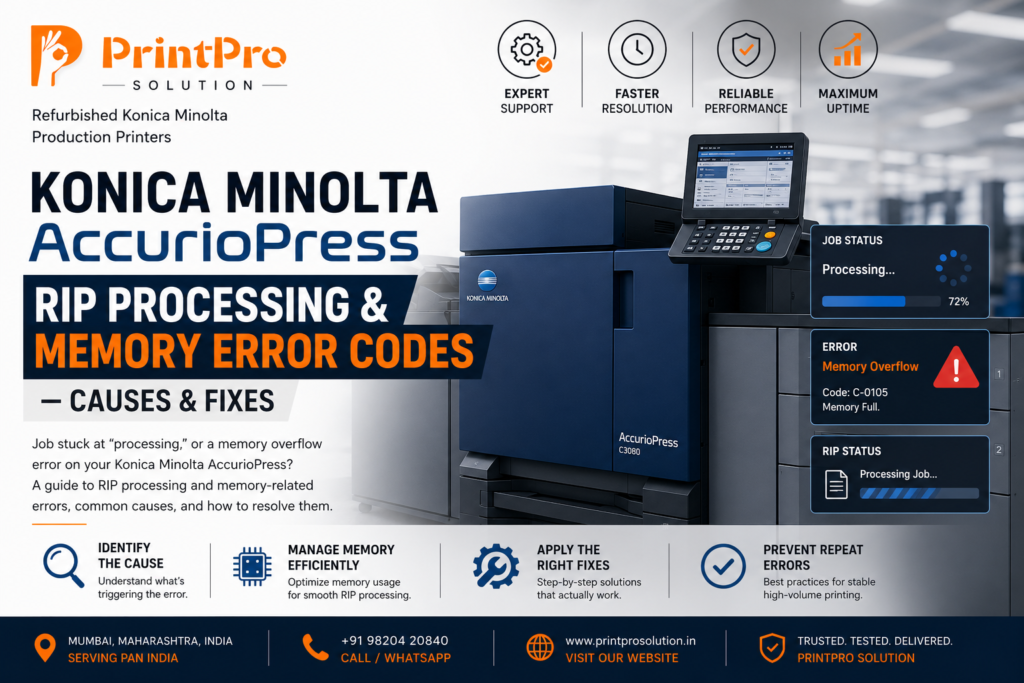
Title: Konica Minolta AccurioPress RIP Processing & Memory Error Codes — Causes & Fixes | PrintPro Solution
Meta Description: Job stuck at “processing,” or a memory overflow error on your Konica Minolta AccurioPress? A guide to RIP processing and memory-related errors, common causes, and how to resolve them.
Category: Konica Minolta Production Printer
Read time: 6 min read
Pillar: Troubleshooting & Error Codes
Konica Minolta AccurioPress RIP Processing & Memory Error Codes — Causes & Fixes
Our network connectivity guide covered jobs that fail to reach the machine or stall in the queue. This one covers a different stage: jobs that reach the machine and begin processing through the RIP (Raster Image Processor) but fail partway through, or trigger a memory-related error before printing can begin. These errors are about the complexity of the job itself and the machine’s processing resources, not connectivity.
Why RIP and memory errors are a distinct category
Once a job is received, the machine’s RIP converts the print file into the raster data the print engine actually uses — a processing-intensive step, especially for complex files. Errors at this stage usually relate to job complexity, file structure, or available processing memory, rather than anything wrong with the print engine or paper path.
1. Memory overflow / insufficient memory error
What it usually means: The job’s processing requirements exceeded available memory allocated for RIP processing.
Common causes:
- A very high-resolution or large-format job with more image data than typical jobs
- Multiple large jobs queued and processing simultaneously, competing for available memory
- A job containing embedded high-resolution images larger than necessary for the intended output size
What to check first:
If this happens on one specific job rather than consistently, check whether that job has unusually large embedded images or an unusually high resolution setting relative to your typical files — reducing embedded image resolution to what’s actually needed for output size often resolves this without any loss in visible quality. If it happens across many jobs, check whether multiple large jobs are being submitted simultaneously rather than allowing sequential processing.
2. Job stuck at “processing” without progressing
What it usually means: The RIP has started processing the job but hasn’t completed within the expected time, without necessarily triggering an explicit error.
Common causes:
- A genuinely complex job (heavy transparency effects, complex vector paths, high object count) taking longer than typical
- A corrupted or malformed element within the file causing the RIP to stall on a specific part of the job
- A backlog of other jobs processing ahead of it, appearing stalled when it’s actually just queued
What to check first:
Allow reasonable extra time for a genuinely complex job before assuming a fault — some files are legitimately slower to process. If a job is stuck significantly longer than any comparable job you’ve run before, try resubmitting it, and if it stalls again at a similar point, the file itself likely has an issue worth checking in its source application before resubmitting.
3. Unsupported file element or format error
What it usually means: The RIP encountered an element within the file it can’t process — an unsupported color profile, an incompatible embedded object, or a corrupted section of the file.
Common causes:
- A file exported with settings incompatible with the machine’s supported specifications
- File corruption during transfer or export
- An embedded element (certain font types, transparency effects) not fully compatible with the RIP
What to check first:
Re-export the file from its source application with standard, verified export settings, rather than assuming the original export was correct. If the issue persists specifically with one file, opening and re-saving it, or simplifying complex elements (flattening transparency, embedding fonts properly), often resolves format-related processing errors.
4. Job queue backlog causing apparent memory strain
What it usually means: Multiple jobs queued together are competing for the same processing resources, sometimes triggering memory-related errors that wouldn’t occur with jobs processed individually.
Common causes:
- Several large jobs submitted in close succession without allowing sequential processing
- A workflow that submits jobs faster than the machine can process and clear them
What to check first:
If errors happen specifically during busy periods with multiple jobs queued, spacing out large job submissions or processing genuinely complex jobs individually rather than in a batch can reduce these errors without any change to the files themselves.
A general troubleshooting approach for this category
- Does the error happen on one specific job, or across many? — One job points to a file-specific issue; many jobs points to a systemic resource or queue issue
- Is the job unusually complex or large relative to your typical files? — If yes, simplifying or optimizing the file is often the fastest fix
- Does the timing correlate with multiple simultaneous jobs? — If yes, adjusting submission timing or spacing may resolve it without touching individual files
When to involve whoever manages your design or prepress workflow
If RIP and memory errors are recurring on files from a specific design source or workflow, involving whoever prepares those files — to standardize export settings or simplify recurring complexity issues — often resolves the root cause more effectively than repeatedly troubleshooting on the machine side.
Dealing with a RIP processing or memory error you can’t resolve?
Tell us the error, your machine model, and whether it’s tied to a specific job or happening broadly — we can help you figure out whether it’s a file issue, a workflow timing issue, or something that needs a closer look at the machine itself.
Facing this on your machine?
Send your model and the issue - our Konica Minolta experts will help you sort it out.