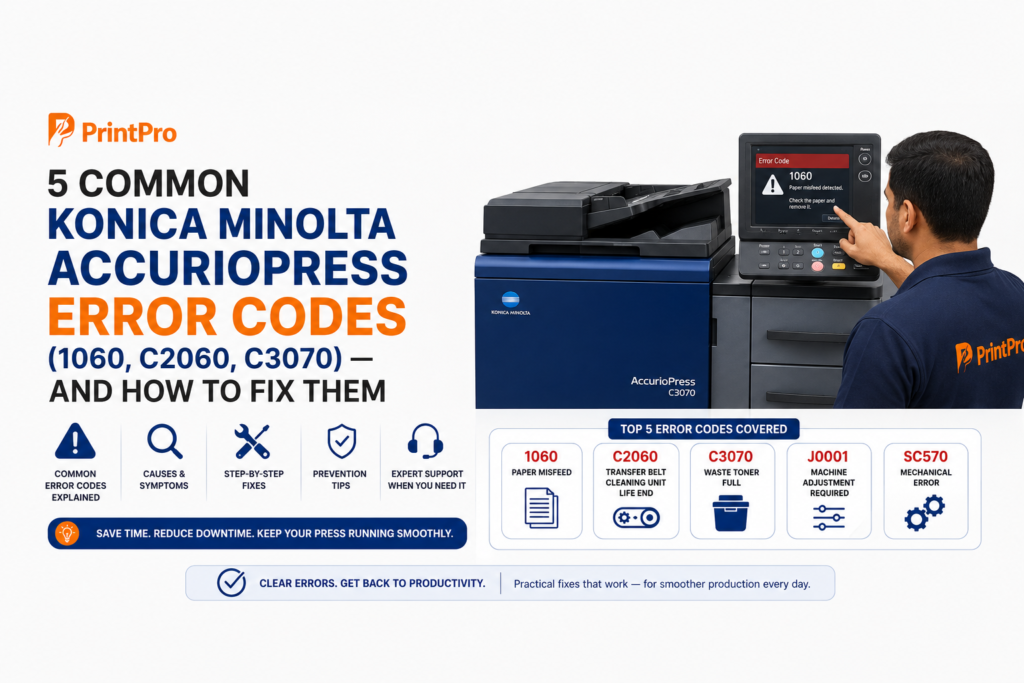
Every print shop knows the feeling: a deadline job is running, and the AccurioPress suddenly stops with an error message and a code. The good news is that most day-to-day errors on the Konica Minolta AccurioPress 1060, C2060 and C3070 are simple, operator-fixable issues — paper jams, toner messages and tray settings — not machine faults.
This guide covers the 5 most common errors, what each one means, where the problem usually is, and easy step-by-step fixes anyone can do safely — no technician needed for the everyday ones. We’ll also flag clearly which codes do need a professional, so you never make a problem worse.
⚠️ Two safety rules before you start:
- Parts inside the machine — especially around the fuser — get very hot. Let them cool, and follow the on-screen guidance.
- Always remove jammed paper gently and completely. A small torn piece left inside causes the next jam.
1. Paper Jam — “J” Codes (e.g. J-xx-xx, “Misfeed Detected”)
What the error is about: A sheet has stopped somewhere along the paper path. The AccurioPress shows a J-code (like J31-02) and a graphic of where the jam is. This is by far the most common day-to-day error on the 1060, C2060 and C3070.
Where the problem is: Wherever the screen points — usually a paper drawer/tray, the right-side door area, the fuser/transfer section, or the finisher/exit. Common causes are damp or curled paper, wrong paper setting, overfilled trays, or low-grade toner clumping.
How to fix it (step by step):
- On the touchscreen, tap “Start Guidance” (the machine animates the exact doors, levers and knobs to open for this jam — follow it).
- Open the indicated door or pull out the indicated tray.
- Gently pull the jammed sheet in the direction of paper travel. Don’t yank — if it resists, open the next indicated lever/knob shown on screen.
- Check for torn pieces and remove every scrap.
- Close all doors/trays firmly. The error clears and printing resumes.
- If it jams again in the same place: fan the paper stack, make sure it’s dry and not curled, and confirm the tray’s paper size/type setting matches the loaded paper.
Prevention: Use good, dry paper stored flat, don’t overfill trays, and use genuine toner (cheap toner clumps and causes repeat jams).
2. “Add Toner” / “Replace Toner” Message
What the error is about: A toner cartridge is low or empty. On the colour C2060/C3070 the screen shows which colour (TN619 K/C/M/Y); on the monochrome 1060 it’s black only.
Where the problem is: The toner bottle/cartridge bay at the front of the machine.
How to fix it (step by step):
- Note the colour indicated on screen (or black, on the 1060).
- Open the front toner cover.
- Remove the empty cartridge for that colour (turn/pull as the machine indicates).
- Take a new genuine cartridge, gently shake it to loosen the toner, and insert it into the correct colour slot until it locks.
- Close the cover. The message clears.
Important: Load the correct colour in the correct slot, and use genuine TN619 toner. Wrong-colour loading or cheap toner causes colour casts, backgrounding and faster drum wear. Keep a spare set on the shelf so a deadline job never stops.
3. “Waste Toner Box Full” / “Replace Waste Toner”
What the error is about: The machine collects leftover toner in a waste toner container. When it’s full, printing stops to protect the machine. The C2060/C3070 waste toner container is rated for roughly 130,000 pages, so this comes up periodically on busy machines.
Where the problem is: The waste toner container, usually behind the front door.
How to fix it (step by step):
- Open the front door and locate the waste toner container (the screen shows its position).
- Slowly pull it out — keep it upright so loose toner doesn’t spill.
- Cap/seal it as designed and set it aside for disposal.
- Insert a new waste toner container until it seats properly.
- Close the door. The message clears.
Tip: Don’t try to empty and reuse the container — install a fresh one. Keep a spare so you’re not caught mid-run.
4. “Load Paper” / Paper Size or Type Mismatch
What the error is about: The job is asking for a paper size or type that doesn’t match what the selected tray is set to (or the tray is empty). The machine stops rather than printing on the wrong stock.
Where the problem is: The paper tray and its size/type settings on the screen — not a machine fault at all.
How to fix it (step by step):
- Read the message — it tells you the tray and the paper it expected (size and type).
- Either load the correct paper in that tray, or adjust the tray’s paper size/type setting on the touchscreen to match what’s actually loaded.
- Make sure the tray’s physical paper guides are snug against the stack (loose guides cause mis-feeds and skew).
- Confirm, and the job continues.
Prevention: Set tray paper size/type correctly every time you change stock — most “mismatch” errors are just a setting that wasn’t updated.
5. “SC” Codes (Service Call) — When to Stop and Call a Technician
What the error is about: An SC code (Service Call) signals an internal fault — something electronic or mechanical the machine can’t self-clear (a sensor, motor, fuser or board issue). This is different from a J-code (jam) or a consumable message.
Where the problem is: Inside the machine — not something an operator should open up.
What to do (step by step):
- Note the exact SC code and what you were doing when it appeared.
- Power the machine off, wait about 30–60 seconds, and power it back on — once. A genuine one-off glitch may clear.
- If the SC code returns or keeps coming back, stop. Do not keep resetting it or open internal panels — repeated resets can turn a small fault into an expensive one.
- Call your service provider with the SC code and machine model. A specialist can often diagnose remotely and bring the right part.
Honest advice: SC codes are exactly when a Konica Minolta specialist saves you money — fast, correct diagnosis prevents a minor fault becoming major downtime.
Quick Reference
| Code / message | What it means | Operator can fix? |
|---|---|---|
| J-xx-xx | Paper jam at the indicated location | ✅ Yes — use Start Guidance |
| Add / Replace Toner | Toner low or empty | ✅ Yes — fit genuine cartridge |
| Waste Toner Full | Waste container full | ✅ Yes — fit new container |
| Load Paper / Mismatch | Tray paper/size setting mismatch | ✅ Yes — fix paper or settings |
| SC code | Internal machine fault | ⚠️ No — power-cycle once, then call a technician |
Simple Habits That Prevent Most Errors
- Use genuine toner and parts — cheap toner is a leading cause of jams and quality faults.
- Store paper flat, dry and acclimatised — damp or curled paper jams constantly.
- Set tray paper size/type correctly whenever you change stock.
- Don’t switch off the main power immediately after a big run — let the machine’s cooling cycle finish.
- Keep spares of toner and a waste toner container so small messages never stop a deadline job.
- Book an AMC — scheduled preventive maintenance catches wear before it becomes an SC code.
Frequently Asked Questions
What’s the difference between a J-code and an SC code on a Konica Minolta AccurioPress? A J-code is a paper jam you can clear yourself using on-screen Start Guidance. An SC code is an internal fault that needs a technician — power-cycle once, and if it returns, call for service.
My AccurioPress keeps jamming in the same place — why? Usually damp or curled paper, an incorrect tray paper setting, an overfilled tray, or low-grade toner. Use dry paper, set the tray correctly, and switch to genuine toner.
Is it safe to remove a paper jam myself? Yes, for J-codes — follow the on-screen guidance, watch out for the hot fuser, and remove every torn scrap. For internal SC faults, don’t open the machine.
The error won’t clear after I cleared the jam. What now? Check for a small torn piece still inside, make sure all doors/trays are fully closed, then restart. If it persists, contact your service provider.
Do you provide service and genuine consumables for these machines? Yes — we supply genuine toner, developer, drums, waste toner containers and spare parts, plus AMC and breakdown support for AccurioPress 1060, C2060, C3070 and the wider range, across Mumbai, Pune, Gujarat and pan-India.
Stuck on an Error Code? We Can Help
Cleared the jam and it’s still showing? Seeing an SC code you don’t recognise? Send us your machine model and the exact code, and our Konica Minolta specialists will help you get back to printing fast — remotely or on-site.
Call +91 91737 65590, WhatsApp us, or send an enquiry — and keep your AccurioPress running.
Facing this on your machine?
Send your model and the issue - our Konica Minolta experts will help you sort it out.